
Font Size:
Learn what to watch out for

You may also download the Voicemail User Guide (PDF)
Visit our online Voicemail portal.
This service is supported in Google Chrome, Microsoft Edge, Safari, and Mozilla Firefox browsers.

Enter your unique Username and Password to sign in to your account. If you did not receive your sign-in information, please contact our office at (615) 666-2151.
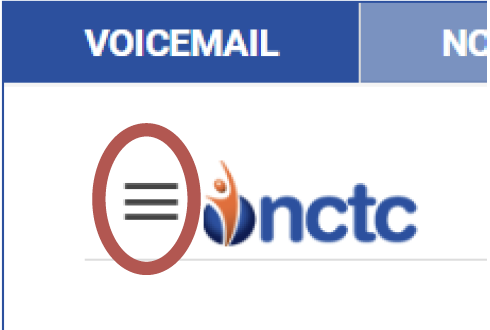
When you sign in, you will be prompted for a PIN Number. The first time you sign in you should use the default PIN of 0000. Click on the Menu icon circled in red and click on Account. Select Change PIN if you would like to change your PIN.
Click on the Menu Icon circled in red and select 1 of 4 options that you wish to manage in your Voicemail service.
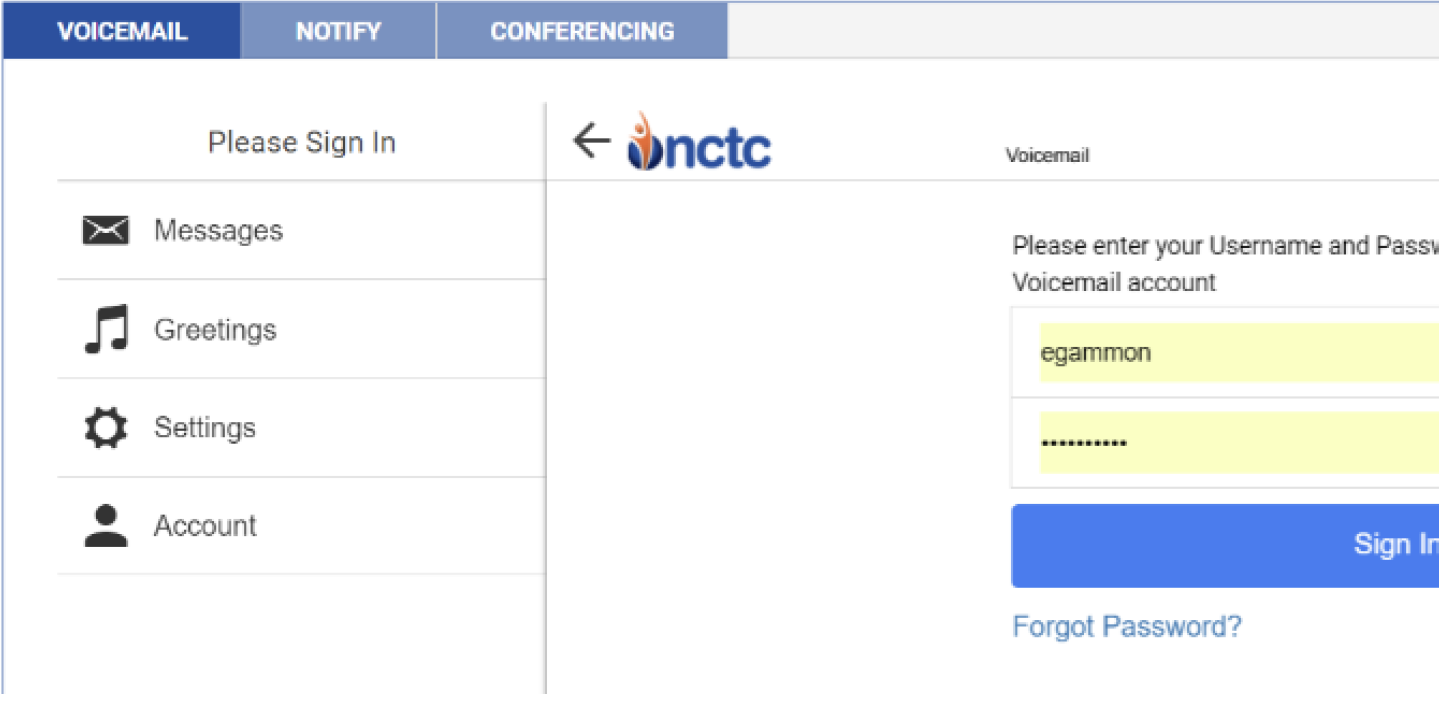
Messages – Displays new and saved messages.
Greetings – Displays greetings callers will hear and allows you to change your Active Greeting.
Settings – Allows you to manage Voicemail messages by setting notification preferences.
Account – Change your password or PIN or log out of your account.
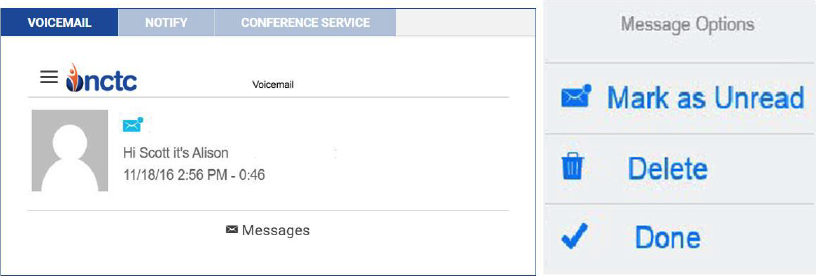
Clicking on Messages will display your voice messages. Calls that result in a new Voice Mail message will have a Blue Envelope icon. If the Voice Mail message has been previously marked as read, it will be displayed with a Black Envelope icon. Clicking on a specific message allows you to listen to the message by clicking the Play button. Clicking on the Envelope icon will allow you to mark a message as Read or Unread. Click on Delete to remove the message. Click Done when you have finished.
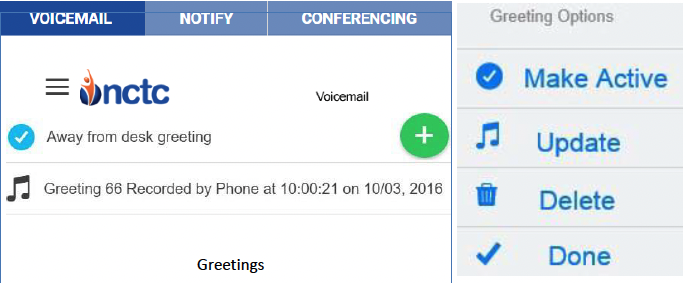
You can add multiple greetings to your service by recording them with a built in computer microphone, calling (270) 622-1000 for Kentucky Customers, (615) 666-1000 for Tennessee Customers or by uploading an audio file from your computer. You can also change your active greeting from your greeting list. A default greeting will play until you add your first greeting.
*Follow the voice prompt instructions to record your greetings over the phone. Once you have recorded a greeting over the phone it will be displayed in your web portal account with a time stamp.
Click on the Greeting that you want to manage. Here you can listen to the Greeting through your computer speakers by clicking on the Play button. Click on the Blue Note icon to further manage your Greeting. Make Active causes this greeting to be the one callers will hear. Use Update to change the selected Greeting Description. Remove the greeting from your account by clicking on Delete. Click Done when you are finished making your changes.
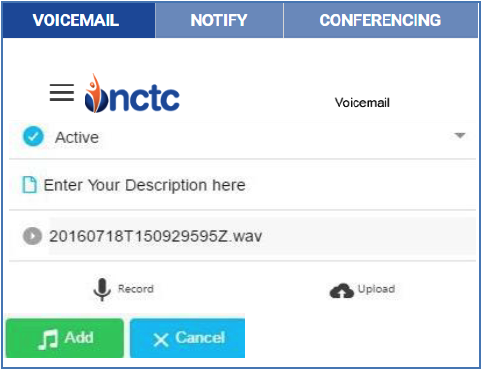
From the Main Menu choose Greetings and click on the Green + button to open the New Greeting box. If you do not want this to be your Active greeting, click the drop down menu and select Default to keep your current greeting Active. Enter a Description for your greeting and click on Record to record your greeting using your computer microphone.
If your Web Browser does not display the Record option, try a different browser.
Choose Upload to retrieve a file from your computer to use as your greeting. Once you have finished recording or adding your new greeting click on the Add button.

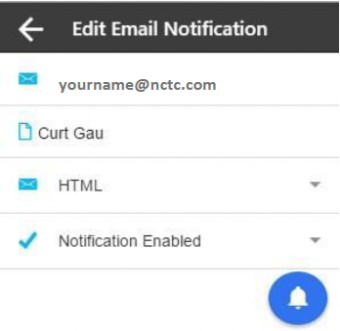
From the Main Menu choose Settings then Email Notifications and click on the Green+ to open the Add Email Notification window. Enter your Notification Email address and a description for the Email address. Click on the Add button to add the Email address to your Voice Mail Notification. You can add multiple Email addresses to this feature. To temporarily deactivate an Email or to delete an Email click on the Email to open an Edit Email Notification window. To Disable click the Notification Enabled dropdown and click on Notification Disabled. To Delete an Email address click on the Blue Bell button and choose Delete. Click Update to save your change and then click Done to close the window.
If you want to allow your callers to connect to you at another number, use the Dial 0 option. Enter the number you would like to use. When your caller dials 0, they will be connected to your chosen number.

To change your Access Password to the Web Portal, your Voice Mail PIN or to Log Out of the service click on Account from the Main Menu.