
Font Size:
Learn what to watch out for

You may also download the Voicemail User Guide (PDF)
Visit our online Voicemail portal.
This service is supported in Google Chrome, Microsoft Edge, Safari, and Mozilla Firefox browsers.

Enter your unique Username and Password to sign in to your account. If you did not receive your sign-in information, please contact our office at (615) 666-2151.
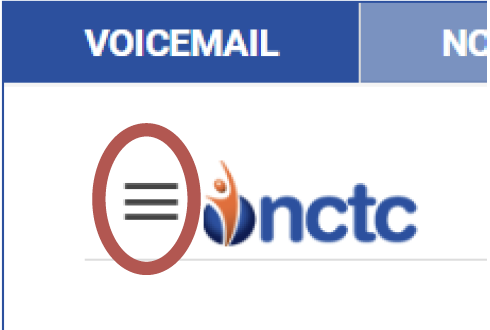
When you sign in, you will be prompted for a PIN Number. The first time you sign in you should use the default PIN of 0000. Click on the Menu icon circled in red and click on Account. Select Change PIN if you would like to change your PIN.
Click on the Menu Icon circled in red and select 1 of 4 options that you wish to manage in your Voicemail service.
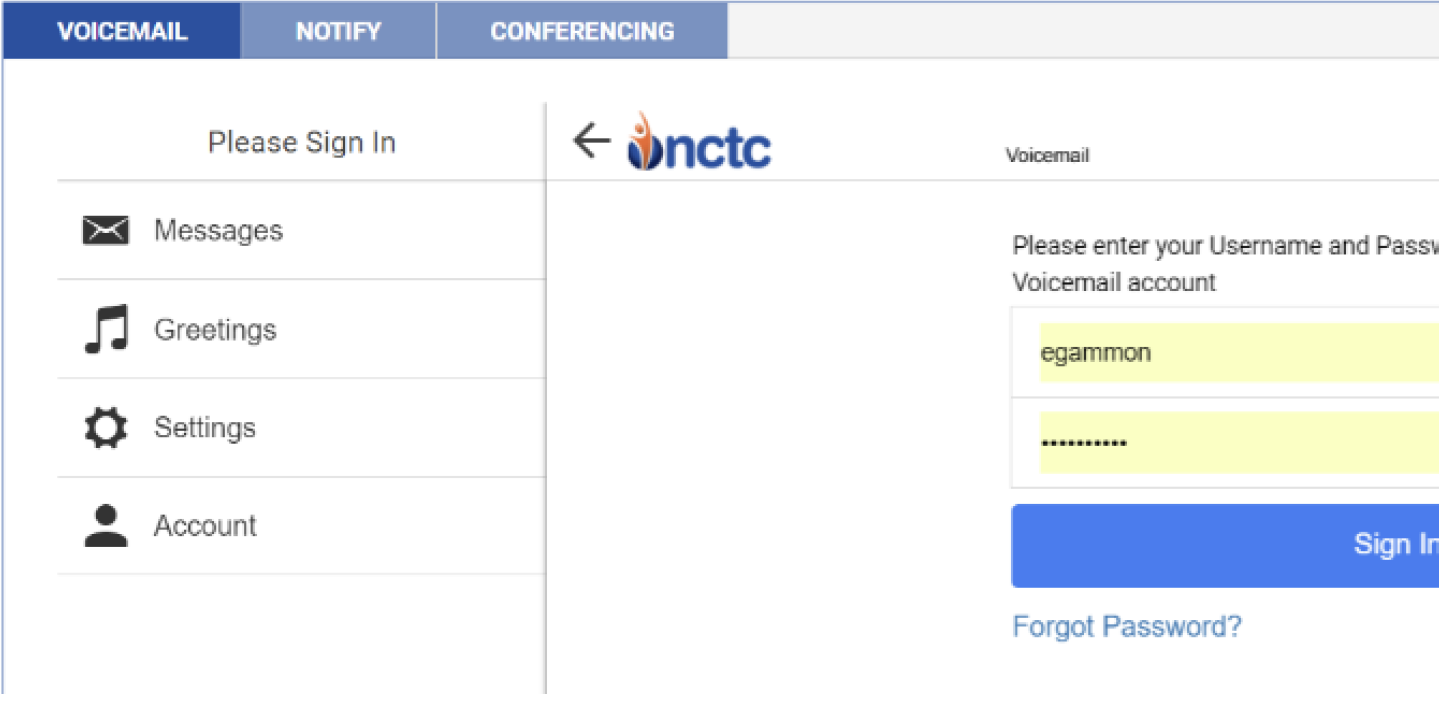
Messages – Displays new and saved messages.
Greetings – Displays greetings callers will hear and allows you to change your Active Greeting.
Settings – Allows you to manage Voicemail messages by setting notification preferences.
Account – Change your password or PIN or log out of your account.
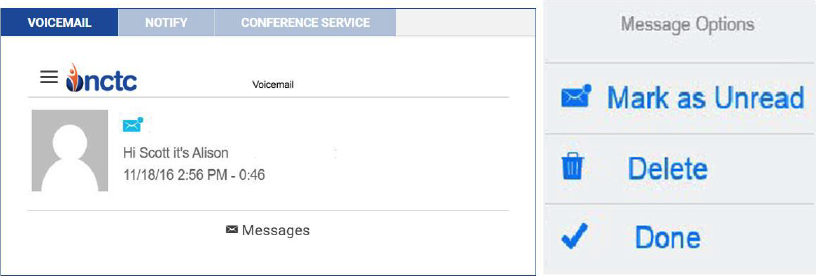
Clicking on Messages will display your voice messages. Calls that result in a new Voice Mail message will have a Blue Envelope icon. If the Voice Mail message has been previously marked as read, it will be displayed with a Black Envelope icon. Clicking on a specific message allows you to listen to the message by clicking the Play button. Clicking on the Envelope icon will allow you to mark a message as Read or Unread. Click on Delete to remove the message. Click Done when you have finished.
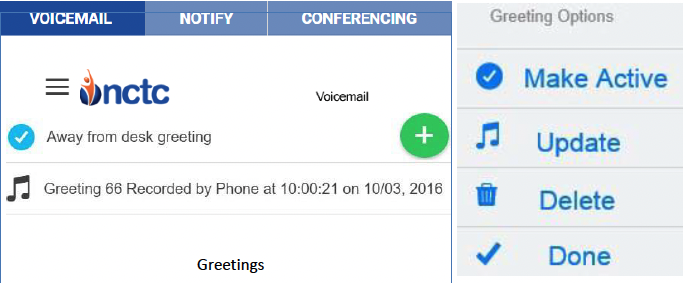
You can add multiple greetings to your service by recording them with a built in computer microphone, calling (270) 622-1000 for Kentucky Customers, (615) 666-1000 for Tennessee Customers or by uploading an audio file from your computer. You can also change your active greeting from your greeting list. A default greeting will play until you add your first greeting.
*Follow the voice prompt instructions to record your greetings over the phone. Once you have recorded a greeting over the phone it will be displayed in your web portal account with a time stamp.
Click on the Greeting that you want to manage. Here you can listen to the Greeting through your computer speakers by clicking on the Play button. Click on the Blue Note icon to further manage your Greeting. Make Active causes this greeting to be the one callers will hear. Use Update to change the selected Greeting Description. Remove the greeting from your account by clicking on Delete. Click Done when you are finished making your changes.
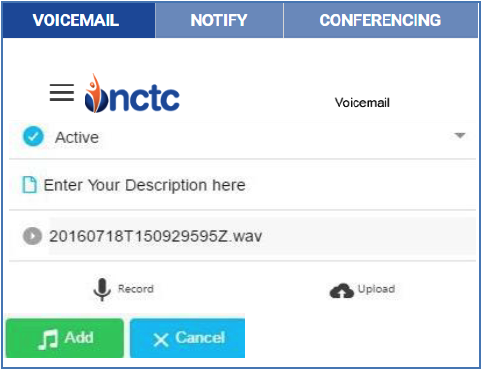
From the Main Menu choose Greetings and click on the Green + button to open the New Greeting box. If you do not want this to be your Active greeting, click the drop down menu and select Default to keep your current greeting Active. Enter a Description for your greeting and click on Record to record your greeting using your computer microphone.
If your Web Browser does not display the Record option, try a different browser.
Choose Upload to retrieve a file from your computer to use as your greeting. Once you have finished recording or adding your new greeting click on the Add button.

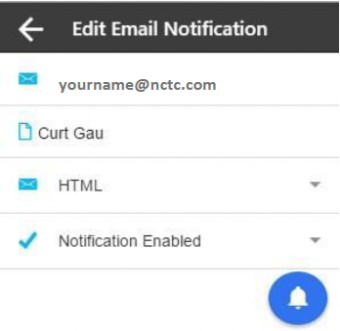
From the Main Menu choose Settings then Email Notifications and click on the Green+ to open the Add Email Notification window. Enter your Notification Email address and a description for the Email address. Click on the Add button to add the Email address to your Voice Mail Notification. You can add multiple Email addresses to this feature. To temporarily deactivate an Email or to delete an Email click on the Email to open an Edit Email Notification window. To Disable click the Notification Enabled dropdown and click on Notification Disabled. To Delete an Email address click on the Blue Bell button and choose Delete. Click Update to save your change and then click Done to close the window.
If you want to allow your callers to connect to you at another number, use the Dial 0 option. Enter the number you would like to use. When your caller dials 0, they will be connected to your chosen number.

To change your Access Password to the Web Portal, your Voice Mail PIN or to Log Out of the service click on Account from the Main Menu.
You may also download the Notify+ User Guide (PDF)
Visit the online Notify+ portal.
Notify+ service is fully functional in Google Chrome, Microsoft Edge, Safari, and Mozilla Firefox browsers.

Enter your unique Username and Password to sign in to your account. If you did not receive your sign-in information, please contact our office at (615) 666-2151.
When you sign in, you will be prompted for a PIN Number. The first time you sign in you should use the default PIN of 0000. Click on the Menu icon circled in red and click on Account. Select Change PIN if you would like to change your PIN.

Click on the Menu Icon circled in Red and select 1 of 4 options that you wish to manage.
There are 4 administrative features to this service:
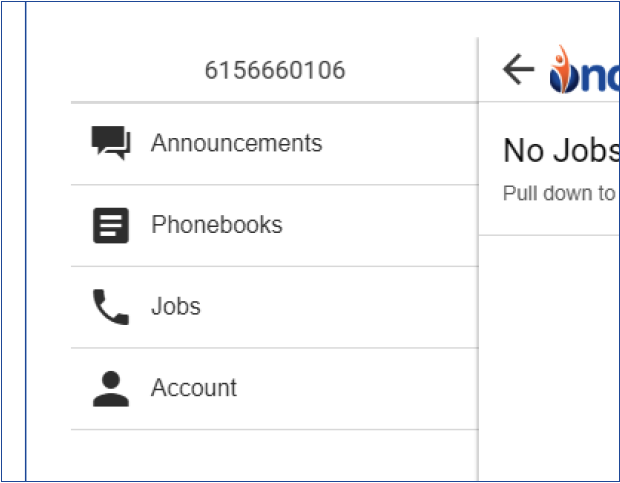
Announcements – Manage audio files that are available to be played for notification calls.
Phonebooks – Organize and store your phone numbers, email addresses and text addresses.
The Jobs – Add, delete, manage and activate your notify jobs.
Account – Change your password or log out of the service
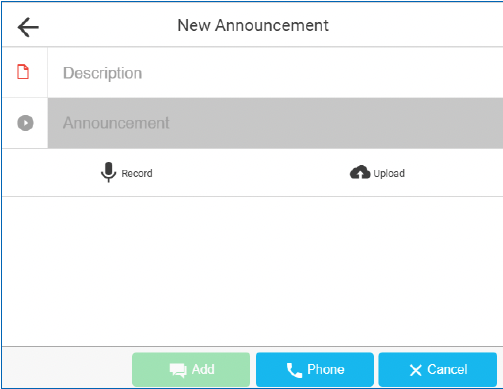
These are recorded messages that you can send to your Phonebook contacts. From the Main Menu, press Announcements to access your current Announcement library.
To record a new announcement, press the Blue + button to open the Actions window and select Add Announcement.
Enter a description for your New Announcement in the Description field.
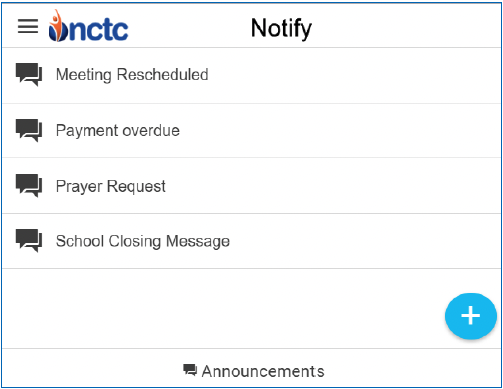
You can use your device or computer to Record by pressing the Mic button if displayed. Press Stop when you have finished recording your message. Press the text bubble button to save your recording.
The Cloud button, if displayed, allows you to upload a pre-recorded announcement from your Computer.
You can also call the Notify+ Admin Center to record your announcement at (615) 688-2325.
After dialing in you will be asked for your subscriber ID, which is your 10 digit phone number including area code.
Once you have logged in, if there are no recorded announcements in your library you will hear: “You currently have no active announcement“ prior to hearing: ‘Announcement Menu”
You have the option of recording up to 20 notification announcements using the Pick a New Announcement option (Option 5), and using your phone pad, select a number for your announcement from “0 to 19”. If the number you select has no previously recorded announcement the prompt will say, “You currently have no active announcement.
After you have recorded your Announcement press the # key. Once your announcement has been recorded, the announcement will have a date and timestamp which you can rename from the Edit Announcement window.

You can edit your announcements by selecting an announcement from your announcement list which will open the Edit Announcement window.
To listen to the selected announcement press the Play button. To change the Announcement description type in the new description. The Download button allows you to save a copy of your recorded Announcement. To Delete this Announcement press the Red Delete button. Press the Update button to update the Announcement.

Phonebooks are used to organize and store your Phone numbers and Email addresses. From the Main Menu, press Phonebooks to access your current Phonebooks.
To create a new Phonebook, press the Blue+ button and select the Add Phonebook option. In the Description field, create a name for your new Phonebook.
Press the Green Add button and choose from the drop-down options to add your Phone or E-Mail Contact. Phone contacts must include their Area Codes.
Upload multiple contacts at one time with the Cloud button. See further down for instructions on uploading multiple contacts from a spreadsheet.
Press the Green Check button to finish adding your contact to the Phonebook. It is important to press the Add button to save your Phonebook when complete.
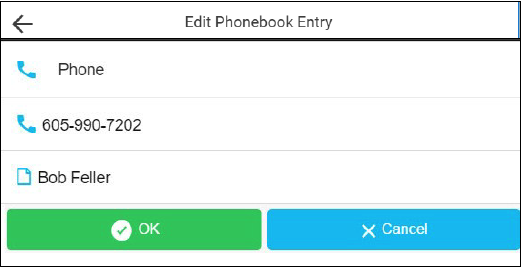
Open a Phonebook and click on a contact to open the Edit Phonebook Entry window.
Clicking on any of the three fields will allow you to change the type of notification (Phone, Email or Text message), the contact phone number, or the name of the contact.
Click OK once the edits have been made.
Click Update to close the entry and save the new changes in the Phonebook.
Spreadsheet File Creation Procedure
Data in this format needs to be created using three columns: Column A, containing the 10 digit phone number, Email address or text phone number and carrier’s domain name. Column B, can have a description or can be left blank, and Column C, which needs to have the number “0” if it is a phone number and the number “1” if it is an Email address and “2” if it is a text phone number. Use the CSV File type when you Save your Notification contact data.
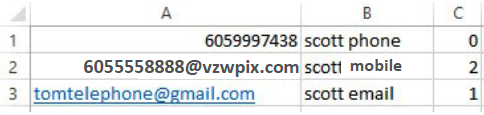
For Verizon text messages use domain name @vzwpix.com, AT&T text messages use @text.att.net, US Cellular use @uscc.textmsg.com, Sprint use @messaging.sprintpcs.com, Bluegrass Cellular use @sms.bluecell.com. Contact us for other carriers.
Important Note: You must save and close the newly created file before Uploading into a Phonebook.
Contact us at (615) 666-2151 for additional assistance with .csv files and converting data inside the columns into the right format.
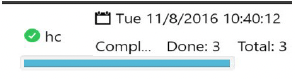
The Jobs section is used to add, delete, and manage notification jobs.
From the Main Menu press the Jobs button, this will display completed and scheduled Jobs. You can select any of the Jobs in your list to review details or to delete the Job.
To schedule a new Job press the Blue + button to open the Actions window and select Add Job.
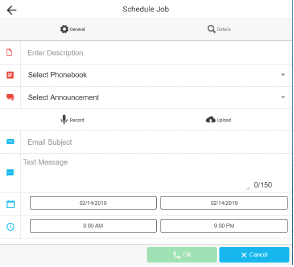
Create a Name for your new Job in the Enter Description field, Select a Phonebook, Select an Announcement, press the Phone button, and your Job will start immediately!
Use Upload to add a new announcement for this Job. Once an Announcement has been selected, a Play button will allow you to listen to the Announcement.
You can enter an Email Subject or text line if you are sending Email or text notifications.
For Email Notifications, enter the message that you would like recipients to receive. Use the Calendar field to set specific Job Start and End dates. You can also use the Time field to select the time range when you would like the Job to run. Press Set to complete your selections.
Press the Phone button to schedule or send out the Notification Job to your selected Phonebook.
The Calendar and Time fields allow for scheduling of future Jobs. By default, Notify+ will only send out Jobs between 8 a.m. and 9 p.m.. Please contact our office if there is a need to change those default times. When you signed up for this service we created certain defaults to meet your needs, refer to page 6 for more information on the Additional Job Features of this service.
If displayed, Notify+ allows you to upload files from your computer into the service. These files could be Announcement recordings of Phonebook contact entries,
All addresses in a phonebook can be exported to an Excel spreadsheet file by opening a phonebook and pressing the Download button if displayed.
To set up a template guide for creating large spreadsheet lists for import into your phonebook, use this function after you have added to your phonebook a single phone number, text, or email address.
Important Note!
You may be subject to FCC requirements to use the Opt-Out option of this service and to record the name of your company in the Preamble Announcement (Introduction Message) if your jobs are purely for sales/telemarketing calls. Failure to do so may violate FCC regulations.
The FCC requires additional reporting for these types of calls. There are exemptions to this order that include political, non-profit and informational reminder notifications.
Refer to the FCC website and search Telemarketing and Robocalls for further guidance.
The Details section provides additional features for your Notify+ Jobs that affect call notification attempts, as well as special response options for your notification contacts. When you set this service up with us, we created certain de faults to meet your needs so that you would not normally need to adjust settings in the Details section. The glossary below explains the functions.
Retries: Enter the number of times the job will re-dial each phone number that has not successfully answered a call. Note: Select “0” and the number will be called just once.
Delay (minimum): You can select in minutes the amount of time you want the service to wait before it attempts to redial Phonebook contacts who haven’t successfully received the recorded announcement.
Double Delay: You can double the Redial Delay time between every attempt related to the Redial Delay.
Minimum Time (seconds): Enter the minimum number of seconds the announcement must be played when a call is placed for the call to be considered successful. This number should closely match the length of your Announcement if you want them to hear the entire notification message.
Email: Set to Send When Complete to have Notify+ send an Email report when this job is complete. To add or delete completion report Email addresses, press the Blue + button and select Setup Job Report Email.
Response: Setting this option to Enabled will allow the called person to press a digit on the phone in response to the notification announcement (e.g. “Press 1 if you agree, press 2 if you disagree.”) The pressed digit will be displayed in the job report Email. Response must also be Enabled to use the Transfer feature.
Transfer 1, 2, 3: Set to Enabled to transfer the call to a phone number or another subscribed service such as Voice Mail when a digit on the phone is pressed. This setting will be disabled if Response is set to Disabled. You can have up to 3 different Transfer options.
Digit: Choose the digit (0 to 9) on the phone that can be pressed to transfer the call. This setting will be disabled if Transfer is set to Disabled.
Transfer Type: Choose the type of transfer that will occur. Options include Address or Service. This setting will be disabled if Transfer is set to Disabled.
To: The target of the call transfer. If the Type is an Address, then a 10 digit phone number must be entered in the field. If the Transfer Type is Service, then a subscribed service like Voice Mail must be selected. This setting will be disabled if Transfer Enabled is set to No and is required if Transfer is set to Disabled.
Opt Out: Select Enabled to give called numbers the option of opting out of future Notify+ Jobs. Select Disabled to turn off the Opt Out option.
Digit: Choose the digit on the phone that can be pressed to opt out of future Notify+ jobs.