
Font Size:
Learn what to watch out for

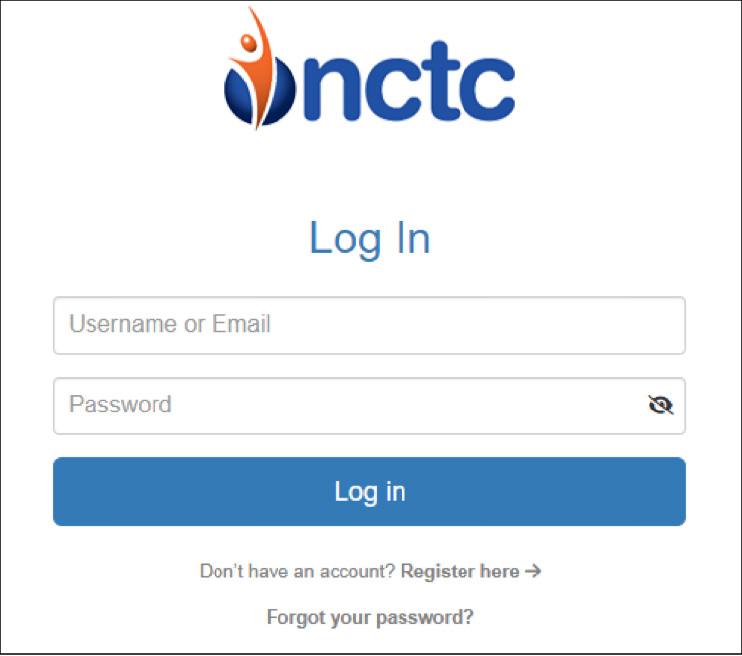
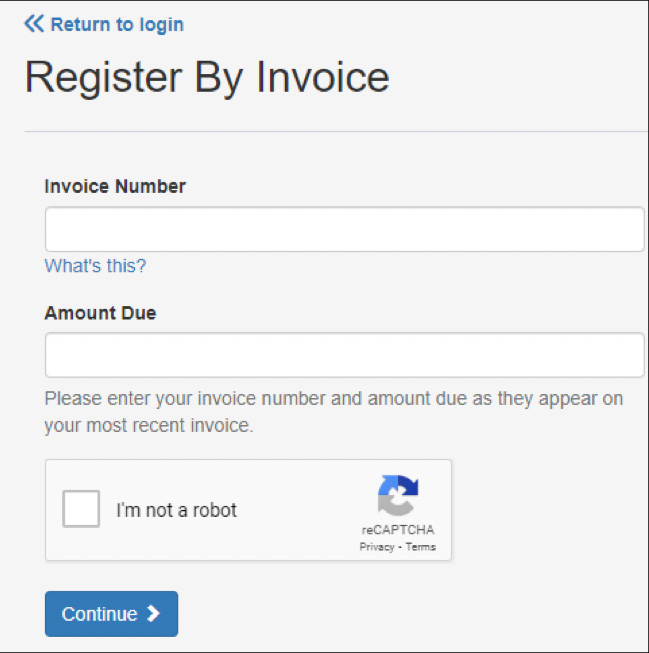 You can click the “What’s This?” link to help identify where you can find the Invoice Number and Amount Due on your bill:
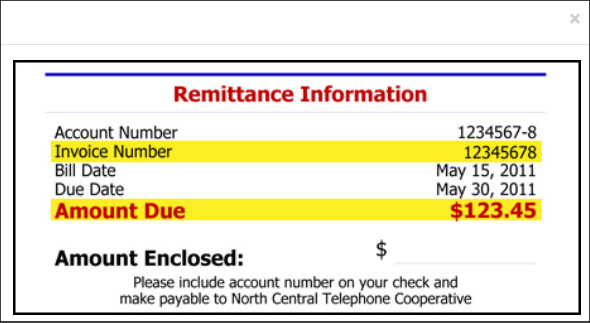 Enter the Invoice Number found on your NCTC bill, and then enter the amount due found on your NCTC bill, as well.
Click “I’m not a robot,” then click to continue.
On the next screen you will enter your email address and be able to create and confirm a password.
Select a security question and enter the answer to the question you selected.
You'll see the following screen:
Enter the Invoice Number found on your NCTC bill, and then enter the amount due found on your NCTC bill, as well.
Click “I’m not a robot,” then click to continue.
On the next screen you will enter your email address and be able to create and confirm a password.
Select a security question and enter the answer to the question you selected.
You'll see the following screen:
 Once this is done, an email will be sent to the address entered above. This email should arrive within a few minutes and will contain a link that you need to click on to confirm your email address and complete your registration.
Once you click the link, you will be brought to a webpage that looks like this:
Once this is done, an email will be sent to the address entered above. This email should arrive within a few minutes and will contain a link that you need to click on to confirm your email address and complete your registration.
Once you click the link, you will be brought to a webpage that looks like this:

 Click “Confirm.”
Once you click that, your email will be confirmed, and you will see a page that looks like this:
Click “Confirm.”
Once you click that, your email will be confirmed, and you will see a page that looks like this:
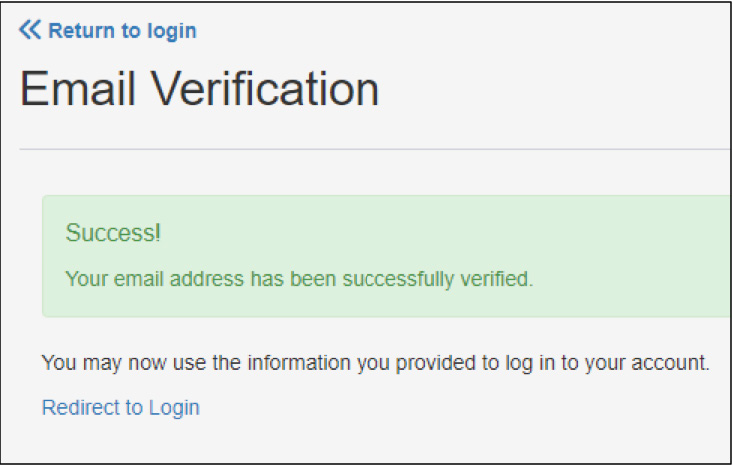 At this point, your registration is complete, and you will be able to log in, view your bill and make a payment.